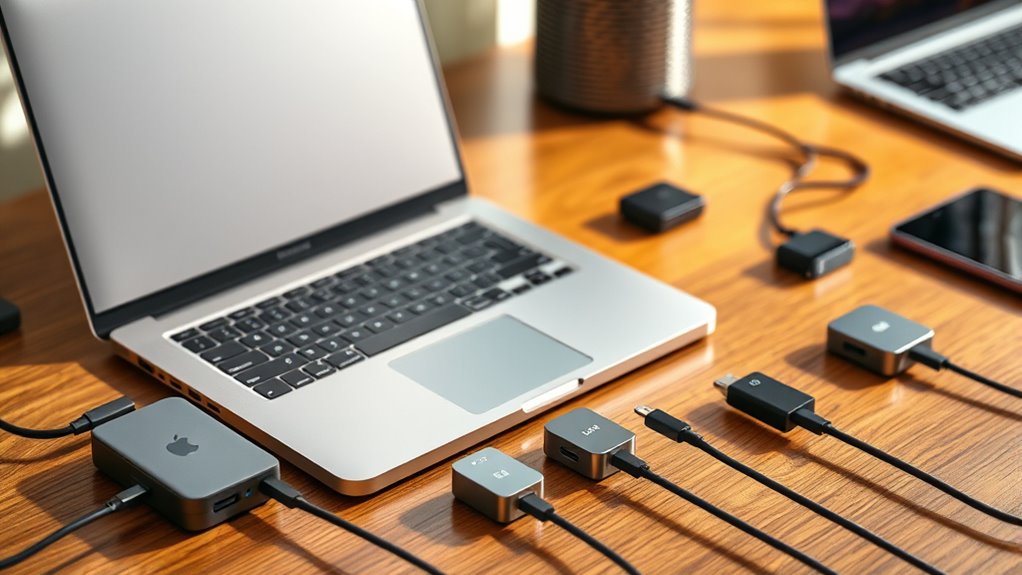

A USB-C hub for MacBook adds ports for displays, drives, memory cards, and charging, but the right choice depends on what you connect every day. I’d start with the Anker 555 USB-C Hub as the best overall for its mix of HDMI, Ethernet, and varied ports; the Anker 547 is a stronger fit for compatible MacBooks with two USB-C ports side by side, while the Acer 5-in-1 with four USB-C data ports suits a desk full of newer USB-C gear. The tradeoffs are port variety versus compact size, and broad compatibility versus a MacBook-specific fit. Display resolution and refresh rate, charging passthrough, and the number of usable ports can vary widely. Read on for the full comparison and guidance on matching a hub to your MacBook and devices.
Key Takeaways
- Anker 555 stands out for buyers who want one compact adapter with Ethernet and a 4K-at-60Hz HDMI connection alongside other ports.
- Anker 547 uses a two-connector design for compatible MacBooks, which can make for a tidy fit but limits use with many other laptops.
- Acer’s 5-in-1 with four USB-C 10Gbps ports favors fast USB-C accessories over HDMI, card readers, and USB-A devices.
- Several 5-in-1 and 7-in-1 picks include HDMI and charging passthrough, but the listed port count alone does not show whether a hub has the specific card reader or network connection you need.
- The lineup includes both 4K HDMI options and a specifically listed 4K-at-60Hz model; buyers who care about smooth external display output should check the exact resolution and refresh rate.
| UGREEN Revodok Pro 6-in-1 USB-C Hub |  | Best Overall | USB-C ports: 2x USB-C 3.2 Gen 2 | USB-A ports: 2x USB-A 3.2 Gen 2 | Data transfer speed: Up to 10 Gbps | VIEW ON AMAZON | See Our Full Breakdown |
| Anker 7-in-1 USB-C Hub with 4K HDMI |  | Best All-Rounder | Ports: HDMI, 2x USB-A 3.0, USB-C data, USB-C PD input, SD slot, TF slot | HDMI output: Up to 4K at 60 Hz | Data transfer speed: Up to 5 Gbps | VIEW ON AMAZON | See Our Full Breakdown |
| Anker 5-in-1 USB-C Hub with 4K HDMI |  | Best Budget Pick | Ports: 1x USB-C PD input, 2x USB-A 2.0, 1x USB-A 3.0, 1x HDMI | Pass-through charging: Up to 90 W (100 W input, 10 W reserved) | USB-A 3.0 speed: Up to 5 Gbps | VIEW ON AMAZON | See Our Full Breakdown |
| BENFEI USB C Hub 5-in-1 with 4K HDMI, 100W Power Delivery, 3 USB-A Ports |  | Best for Travel Durability | Ports: 1x HDMI, 1x USB-C PD, 1x USB-A 3.2, 2x USB-A 2.0 | HDMI output: Up to 4K at 30 Hz | Power Delivery: 100 W (90 W pass-through) | VIEW ON AMAZON | See Our Full Breakdown |
| Hiearcool 7-in-1 USB-C Hub for MacBook and USB-C Laptops |  | Best for Presenters | Ports: HDMI, USB 3.0, USB-C PD, SD slot, TF slot | HDMI output: 4K at 30 Hz | USB-C PD pass-through: Up to 100 W | VIEW ON AMAZON | See Our Full Breakdown |
| Acer 7-in-1 USB-C Hub with 4K HDMI |  | Best Port Variety on a Budget | Ports: HDMI, 2x USB-A 3.1, 1 USB-C data, 1 USB-C PD, SD reader, MicroSD reader | HDMI Output: Up to 4K at 30Hz | Data Transfer: Up to 5 Gbps | VIEW ON AMAZON | See Our Full Breakdown |
| UGREEN Revodok 6-in-1 USB-C Hub with Gigabit Ethernet |  | Best for Wired Internet | Ports: 6 (HDMI, RJ45 Ethernet, USB-C PD, 3x USB-A 3.0) | HDMI: 4K @ 30Hz (no HDR/3D) | Ethernet: Gigabit RJ45, up to 1000Mbps | VIEW ON AMAZON | See Our Full Breakdown |
| Anker 555 USB-C Hub (8-in-1) |  | Best Overall | Ports: HDMI, Ethernet, USB-C data, 2x USB-A data, USB-C PD input, SD/microSD readers | Video Output: 4K@60Hz (DP 1.4), 4K@30Hz (DP 1.2) | Data Transfer: Up to 10 Gbps | VIEW ON AMAZON | See Our Full Breakdown |
| Anker 547 USB-C Hub (7-in-2) for MacBook |  | Best Premium MacBook Companion | Ports: 7 (multi-function USB-C, USB-C data, 2x USB-A, HDMI, SD, microSD) | Data Transfer: Up to 40 Gb/s | Charging: Up to 100W pass-through | VIEW ON AMAZON | See Our Full Breakdown |
| Anker 332 5-in-1 USB-C Hub with 4K HDMI | 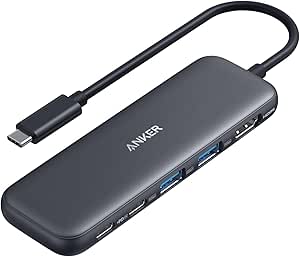 | Best Minimalist Value | Ports: 4K HDMI, 1 USB-C data, 2 USB-A data, 1 USB-C PD-IN | HDMI Resolution: Up to 4K at 30Hz | Data Transfer: Up to 5 Gbps | VIEW ON AMAZON | See Our Full Breakdown |
| MOKiN USB C Hub 7-in-1 HDMI Adapter |  | Best for Photographers | Ports: 1x HDMI, 2x USB 3.0, 1x USB-C Data, 1x USB-C PD, SD/TF card reader | HDMI Resolution: 4K UHD @ 60Hz | USB Data Speed: Up to 5Gbps | VIEW ON AMAZON | See Our Full Breakdown |
| Acer 5-in-1 USB-C Hub with 4x USB-C 3.2 Gen 2 Ports |  | Best for Fast Data Transfers | Ports: 4x USB-C 3.2 Gen 2 data, 1x USB-C 100W PD | Data Transfer Speed: Up to 10Gbps | Power Delivery: 100W | VIEW ON AMAZON | See Our Full Breakdown |
| UGREEN 5-in-1 USB C Hub Multiport Adapter with 4K HDMI |  | Best Minimalist Pick | Ports: 1x HDMI, 1x USB-C PD, 1x USB-A 5Gbps, 2x USB-A 480Mbps | HDMI Resolution: 4K | Power Delivery: 100W | VIEW ON AMAZON | See Our Full Breakdown |
| 8-in-2 USB C Hub Adapter for MacBook Pro/Air |  | Best Desktop Dock Replacement | Number of Ports: 8 | HDMI: 4K@60Hz | Thunderbolt 3: 5K@60Hz, 40Gbps data, 100W PD input (85W output) | VIEW ON AMAZON | See Our Full Breakdown |
| Acer 5-in-1 USB-C Hub with 4K@60Hz HDMI Adapter |  | Best Slim Travel Hub | Ports: HDMI, USB-C 3.0, USB-A 3.0, USB-A 2.0, USB-C PD | HDMI Output: 4K @ 60Hz | Power Delivery: 100W input, 90W output (PD 3.0) | VIEW ON AMAZON | See Our Full Breakdown |
| usbc hub for macbook | Ports | Compatibility |
|---|---|---|
| UGREEN Revodok Pro 6-in-1 USB- | — | — |
| Anker 7-in-1 USB-C Hub with 4K | HDMI, 2x USB-A 3.0, USB-C data, USB-C PD input, SD slot, TF slot | — |
| Anker 5-in-1 USB-C Hub with 4K | 1x USB-C PD input, 2x USB-A 2.0, 1x USB-A 3.0, 1x HDMI | macOS 12+, Windows 10/11, ChromeOS; not Linux |
| BENFEI USB C Hub 5-in-1 with 4 | 1x HDMI, 1x USB-C PD, 1x USB-A 3.2, 2x USB-A 2.0 | MacBook, iPad Pro, iPhone 15 Pro, XPS, ThinkPad, Surface, Chromebook, Galaxy |
| Hiearcool 7-in-1 USB-C Hub for | HDMI, USB 3.0, USB-C PD, SD slot, TF slot | MacBook and USB-C laptops |
| Acer 7-in-1 USB-C Hub with 4K | HDMI, 2x USB-A 3.1, 1 USB-C data, 1 USB-C PD, SD reader, MicroSD reader | USB-C devices; Windows, ChromeOS, Linux, Mac OS X 10.5+ |
| UGREEN Revodok 6-in-1 USB-C Hu | 6 (HDMI, RJ45 Ethernet, USB-C PD, 3x USB-A 3.0) | MacBook Pro/Air M1-M5, iPad, iPhone, Steam Deck, Windows 7+ |
| Anker 555 USB-C Hub | HDMI, Ethernet, USB-C data, 2x USB-A data, USB-C PD input, SD/microSD readers | USB-C, USB4, Thunderbolt; macOS 12+, Windows 10/11, ChromeOS |
| Anker 547 USB-C Hub | 7 (multi-function USB-C, USB-C data, 2x USB-A, HDMI, SD, microSD) | MacBook Pro/Air (M4/M5 and newer; not MacBook Neo) |
| Anker 332 5-in-1 USB-C Hub wit | 4K HDMI, 1 USB-C data, 2 USB-A data, 1 USB-C PD-IN | USB-C, USB4, Thunderbolt; macOS 12+, Windows 10/11, ChromeOS |
| MOKiN USB C Hub 7-in-1 HDMI Ad | 1x HDMI, 2x USB 3.0, 1x USB-C Data, 1x USB-C PD, SD/TF card reader | MacBook Pro/Air (M1/M2), iMac, iPad Pro, iPhone 15 Pro, Dell XPS, Surface, HP |
| Acer 5-in-1 USB-C Hub with 4x | 4x USB-C 3.2 Gen 2 data, 1x USB-C 100W PD | — |
| UGREEN 5-in-1 USB C Hub Multip | 1x HDMI, 1x USB-C PD, 1x USB-A 5Gbps, 2x USB-A 480Mbps | — |
| 8-in-2 USB C Hub Adapter for M | — | — |
| Acer 5-in-1 USB-C Hub with 4K@ | HDMI, USB-C 3.0, USB-A 3.0, USB-A 2.0, USB-C PD | Windows, macOS, ChromeOS; MacBook Pro/Air, Surface, Acer |
More Details on Our Top Picks
UGREEN Revodok Pro 6-in-1 USB-C Hub
This option earns the top spot because it fixes the two things MacBook owners complain about most: slow transfer speeds and choppy external displays. Where the Anker 7-in-1 and Hiearcool 7-in-1 cap data at 5 Gbps, this hub gives you four ports running at 10 Gbps, which halves the wait when moving large video projects or photo libraries. The 4K at 60 Hz HDMI output also puts it ahead of the 30 Hz hubs in this lineup, making an external monitor feel fluid rather than laggy. The tradeoff is port variety — there are no SD or TF card slots, so photographers will still need a separate reader, unlike the Anker 7-in-1. Compared with the Acer 4x USB-C hub, it splits its ports between USB-A and USB-C, which suits mixed setups with older peripherals.
Pros:- Four USB data ports all running at 10 Gbps
- 4K HDMI output at a smooth 60 Hz
- 100 W Power Delivery keeps a MacBook charged under load
- Balanced mix of USB-A and USB-C ports for old and new peripherals
Cons:- No SD or TF card reader slots
- No Ethernet port, unlike the larger UGREEN Revodok 6-in-1
Best for: MacBook users who move large files regularly and want a smooth 60 Hz external display without juggling multiple adapters
Not ideal for: Photographers and videographers who need built-in SD card readers — this hub has none
- USB-C ports:2x USB-C 3.2 Gen 2
- USB-A ports:2x USB-A 3.2 Gen 2
- Data transfer speed:Up to 10 Gbps
- HDMI output:4K at 60 Hz
- Power Delivery:100 W
- Simultaneous use:Multiple ports usable at once
Our verdict“The strongest all-around pick if fast transfers and 60 Hz video matter more to you than card readers.”
Anker 7-in-1 USB-C Hub with 4K HDMI
This model makes the most sense for the typical MacBook owner who wants one adapter that covers everything. Unlike the UGREEN Revodok Pro, it includes SD and TF card slots, which saves photographers from carrying a second gadget. It also stands out for offering 4K at 60 Hz over HDMI, something the cheaper Anker 5-in-1 and BENFEI 5-in-1 in this roundup don’t do. The compromises are real though: data speeds peak at 5 Gbps — half the UGREEN’s pace — and the USB-C port is data-only, meaning you can’t run a second display through it. Compared with the Hiearcool 7-in-1, its 60 Hz HDMI gives it a clear edge for anyone using a modern 4K monitor daily.
Pros:- 4K HDMI at 60 Hz for smooth external display
- Built-in SD and TF card readers
- Up to 85W laptop charging while peripherals are connected
- Compact design with a strong 18-month warranty
Cons:- Data transfer limited to 5 Gbps, half the speed of the UGREEN Revodok Pro
- USB-C port supports data only, no video output
Best for: General-purpose MacBook users and hobbyist photographers who want display, data, charging, and card reading in a single compact hub
Not ideal for: Anyone with multiple external monitors — only the HDMI port carries video
- Ports:HDMI, 2x USB-A 3.0, USB-C data, USB-C PD input, SD slot, TF slot
- HDMI output:Up to 4K at 60 Hz
- Data transfer speed:Up to 5 Gbps
- Laptop charging:Up to 85 W
- USB-C PD input:Up to 100 W
- Warranty:18 months
Our verdict“A well-balanced everyday hub that trades raw speed for versatility most people actually use.”
Anker 5-in-1 USB-C Hub with 4K HDMI
This is the entry point of the lineup, and it’s honest about what it is. You get HDMI, three USB-A ports, and pass-through charging — the basics most desk setups need — without paying for card readers or extra USB-C data ports. The 4K output is capped at 30 Hz, which is fine for documents and browsing but noticeably less fluid than the 60 Hz on the Anker 7-in-1 when scrolling or moving windows on a big monitor. Two of the USB-A ports run at older 2.0 speeds, so this is better for keyboards and mice than hard drives — a real step down from the BENFEI 5-in-1, which includes a 10 Gbps port. Also note the wall charger isn’t included, and Linux users are out of luck entirely.
Pros:- Covers HDMI, USB-A, and charging in one affordable hub
- Up to 90W pass-through charging keeps a MacBook powered
- Mirror and extend display modes supported
Cons:- 4K HDMI limited to 30 Hz, less smooth than 60 Hz rivals
- Two USB-A ports are slow 2.0 (480 Mbps)
- No wall charger included and no Linux support
Best for: Students and occasional users who need basic HDMI output and USB-A ports for peripherals at minimal cost
Not ideal for: Linux users and anyone transferring large files — two ports are USB 2.0 speed and Linux isn’t supported
- Ports:1x USB-C PD input, 2x USB-A 2.0, 1x USB-A 3.0, 1x HDMI
- Pass-through charging:Up to 90 W (100 W input, 10 W reserved)
- USB-A 3.0 speed:Up to 5 Gbps
- USB-A 2.0 speed:Up to 480 Mbps
- HDMI output:4K at 30 Hz, mirror and extend
- Compatibility:macOS 12+, Windows 10/11, ChromeOS; not Linux
- Wall charger:Not included
- Warranty:18 months
Our verdict“A sensible no-frills starter hub, as long as 30 Hz video and slow peripheral ports don’t bother you.”
BENFEI USB C Hub 5-in-1 with 4K HDMI, 100W Power Delivery, 3 USB-A Ports
What sets this model apart from the similarly priced Anker 5-in-1 is its 20 cm silicone woven cable rated for 25,000+ bend cycles — a meaningful difference if your hub lives at the bottom of a backpack. The 10 Gbps USB-A 3.2 port also beats every budget rival here for file transfers, closing much of the gap to the UGREEN Revodok Pro for a single-drive workflow. The aluminum enclosure helps with heat during sustained transfers too. The downsides mirror the Anker budget pick: HDMI tops out at 4K at 30 Hz, the USB-C port handles charging only, and two USB-A ports are 2.0 speed. It’s also one of the broader compatibility plays here, covering iPad Pro and iPhone 15 Pro alongside MacBooks.
Pros:- Durable silicone woven cable rated for 25,000+ bends
- One 10 Gbps USB-A 3.2 port for fast drive transfers
- 100W PD with 90W pass-through charging
- Works with iPad Pro and iPhone 15 Pro, not just laptops
Cons:- HDMI limited to 4K at 30 Hz
- USB-C port is charging-only, no data or video
- Requires host USB-C port with video output support
Best for: Commuters and travelers who want a rugged, flexible cable and one fast port for external drives
Not ideal for: Anyone editing video on a 4K monitor — the 30 Hz refresh rate makes motion feel sluggish
- Ports:1x HDMI, 1x USB-C PD, 1x USB-A 3.2, 2x USB-A 2.0
- HDMI output:Up to 4K at 30 Hz
- Power Delivery:100 W (90 W pass-through)
- Data transfer:Up to 10 Gbps on USB-A 3.2
- Cable:20 cm silicone woven, 25,000+ bend cycles
- Enclosure:Aluminum
- Compatibility:MacBook, iPad Pro, iPhone 15 Pro, XPS, ThinkPad, Surface, Chromebook, Galaxy
- Warranty:18 months
Our verdict“The toughest travel companion in this batch, best for people who break cables, not for people who need smooth 4K video.”
Hiearcool 7-in-1 USB-C Hub for MacBook and USB-C Laptops
This hub carves out a niche as the meeting-room and conference tool: HDMI for the projector, an SD slot for pulling slides or assets off a camera card, USB 3.0 for a clicker or drive, and 100W pass-through charging so your MacBook survives a full day of back-to-back sessions. Its port selection nearly matches the Anker 7-in-1, but the HDMI is stuck at 30 Hz at 4K, where the Anker runs 60 Hz — the main reason it ranks below it. There’s also only one USB 3.0 data port plus the card readers, so heavy peripheral users may feel pinched compared with the four-port UGREEN Revodok Pro. The aluminum build is genuinely compact, though, and it slides into a laptop sleeve without adding bulk.
Pros:- Combines HDMI, USB 3.0, SD/TF readers, and PD charging in one slim body
- Up to 100W pass-through charging
- Compact aluminum build travels well
- Broad compatibility with MacBooks and other USB-C laptops
Cons:- HDMI limited to 4K at 30 Hz, behind the Anker 7-in-1’s 60 Hz
- Only one full-speed USB data port
Best for: Consultants, students, and presenters who regularly connect to projectors and need charging plus card access on the road
Not ideal for: Users with a 4K desk monitor who will notice the 30 Hz refresh rate every day
- Ports:HDMI, USB 3.0, USB-C PD, SD slot, TF slot
- HDMI output:4K at 30 Hz
- USB-C PD pass-through:Up to 100 W
- USB 3.0 speed:Up to 5 Gbps
- Build:Aluminum
- Compatibility:MacBook and USB-C laptops
Our verdict“A dependable grab-and-go hub for meeting rooms and classrooms, just not the pick for a high-refresh home monitor.”
Acer 7-in-1 USB-C Hub with 4K HDMI
This Acer hub earns its place by squeezing seven ports into a single aluminum-clad adapter, covering nearly every base a MacBook owner needs: HDMI, dual USB-A, USB-C data, 100W PD passthrough, and both SD and MicroSD readers. Compared with the UGREEN Revodok 6-in-1, it trades gigabit Ethernet for the card readers, which makes more sense for photographers who offload camera media regularly. The aluminum housing also helps with heat dissipation, something plastic-bodied rivals like the Anker 547 don’t offer. The main compromise is video: 4K caps at 30Hz, so text on a large external monitor can feel slightly soft compared with 60Hz options like the Anker 555. Buyers should also confirm their MacBook supports DisplayPort Alt Mode, since the hub won’t output video otherwise.
Pros:- Seven ports including both SD and MicroSD card readers
- 100W PD passthrough keeps a MacBook charged during heavy use
- Aluminum body dissipates heat better than plastic hubs
- Covers video, data, charging, and card reading in one adapter
Cons:- HDMI limited to 4K at 30Hz — not ideal for large or high-refresh displays
- USB ports handle data only, no video or audio output
Best for: Photographers and students who need SD/MicroSD readers plus everyday connectivity without spending much
Not ideal for: Owners of 4K 60Hz monitors or anyone who needs wired Ethernet — neither is supported here
- Ports:HDMI, 2x USB-A 3.1, 1 USB-C data, 1 USB-C PD, SD reader, MicroSD reader
- HDMI Output:Up to 4K at 30Hz
- Data Transfer:Up to 5 Gbps
- Power Delivery:Up to 100W passthrough
- Material:Aluminum
- Compatibility:USB-C devices; Windows, ChromeOS, Linux, Mac OS X 10.5+
Our verdict“A sensible pick if card readers matter more to you than 60Hz video or Ethernet.”
UGREEN Revodok 6-in-1 USB-C Hub with Gigabit Ethernet
The Revodok’s gigabit Ethernet port is the reason it’s here — very few hubs at this port count include a stable wired connection, which matters for video calls, large downloads, and anyone whose Wi-Fi is unreliable. Against the Acer 7-in-1, you give up the card readers but gain a 1000Mbps RJ45 jack, a fair trade for office workers and gamers. It also carries 100W PD passthrough (85W delivered to the laptop) and three USB-A 3.0 ports running at 5 Gbps, so it functions well as a compact desktop dock. The compromises mirror its price tier: HDMI tops out at 4K@30Hz with no HDR or 3D, and the USB-C PD port is charge-only. If you want 60Hz video alongside Ethernet, the pricier Anker 555 is the better fit.
Pros:- Gigabit Ethernet delivers a fast, stable wired connection
- Three USB-A 3.0 ports at 5 Gbps for peripherals
- 100W PD passthrough with 85W reaching the laptop
- Plug-and-play with MacBooks M1-M5, iPad, iPhone, and Steam Deck
Cons:- HDMI limited to 4K@30Hz with no HDR or 3D support
- USB-C PD port is charging-only — no data or video
Best for: Remote workers and gamers who need a stable wired network connection on a MacBook or Steam Deck
Not ideal for: Movie watchers and 4K monitor users — the 30Hz HDMI without HDR makes motion look choppy
- Ports:6 (HDMI, RJ45 Ethernet, USB-C PD, 3x USB-A 3.0)
- HDMI:4K @ 30Hz (no HDR/3D)
- Ethernet:Gigabit RJ45, up to 1000Mbps
- Charging:100W PD passthrough (85W to laptop)
- Data Transfer:Up to 5 Gbps
- Compatibility:MacBook Pro/Air M1-M5, iPad, iPhone, Steam Deck, Windows 7+
- Design:Plug-and-play, lightweight, heat resistant
Our verdict“The go-to choice when a reliable wired internet connection outranks display quality.”
Anker 555 USB-C Hub (8-in-1)
This is the hub I’d point most MacBook owners toward first, because it fixes the two biggest weaknesses of cheaper rivals in one move. Where the UGREEN Revodok and Acer 7-in-1 both stall at 4K@30Hz, the 555 outputs 4K@60Hz over HDMI, which makes a visible difference in cursor smoothness and text clarity on modern monitors. It also jumps to 10 Gbps data transfer — double the speed of the budget picks — across both USB-C and USB-A ports, and adds Ethernet plus SD/microSD readers for a full eight-port spread. The tradeoffs are real but manageable: only 85W reaches the laptop (a 100W charger is recommended), Linux isn’t supported, and video output is HDMI-only. An 18-month warranty rounds out a package that justifies its premium positioning.
Pros:- 4K@60Hz HDMI output for smooth external display use
- 10 Gbps data transfer doubles the speed of budget hubs
- Eight ports including Ethernet and SD/microSD readers
- 18-month warranty with Thunderbolt and USB4 support
Cons:- Requires a 100W PD charger and cable for full 85W passthrough
- Not compatible with Linux
- Only the HDMI port supports video output
Best for: MacBook owners who want one hub that handles 60Hz 4K video, fast file transfers, Ethernet, and cards without compromise
Not ideal for: Linux users and anyone hoping to run dual external monitors from a single hub
- Ports:HDMI, Ethernet, USB-C data, 2x USB-A data, USB-C PD input, SD/microSD readers
- Video Output:4K@60Hz (DP 1.4), 4K@30Hz (DP 1.2)
- Data Transfer:Up to 10 Gbps
- Pass-Through Charging:Up to 85W (100W charger recommended)
- Cable Length:7.48 inches built-in USB-C
- Compatibility:USB-C, USB4, Thunderbolt; macOS 12+, Windows 10/11, ChromeOS
- Warranty:18 months
Our verdict“The safest all-around buy — fast, versatile, and smooth on modern displays if you can supply enough power.”
Anker 547 USB-C Hub (7-in-2) for MacBook
Unlike every dongle-style hub in this lineup, the 547 is a 7-in-2 sled designed to hug the side of a MacBook Air or Pro, occupying two USB-C ports while leaving MagSafe charging unobstructed. Its standout spec is the multi-function USB-C port: 40 Gb/s data transfer, 100W charging, and 5K@60Hz display output — far beyond anything the Anker 555 or UGREEN Revodok offer. That means you can keep Thunderbolt-speed drives and a high-resolution monitor on one compact accessory. The catch is Apple’s own limitation: M1, M2, and M3 MacBooks won’t drive dual external displays, so the second HDMI is only fully useful on M4/M5 machines. It’s also plastic rather than aluminum and doesn’t fit the MacBook Neo. For recent MacBook owners who travel light, though, it’s the most capable hub-shaped option here.
Pros:- 40 Gb/s data transfer via the multi-function USB-C port
- 5K@60Hz USB-C display plus 4K@60Hz HDMI for dual monitors
- Slim side-mount design leaves the MagSafe port free
- 100W pass-through charging with 18-month warranty
Cons:- M1/M2/M3 MacBooks do not support dual external displays
- Not compatible with MacBook Neo and limited to macOS devices
Best for: M4/M5 MacBook Air or Pro owners who want Thunderbolt-class speeds and dual displays in a travel-friendly form
Not ideal for: Owners of M1-M3 MacBooks wanting dual external monitors — the hardware only supports one
- Ports:7 (multi-function USB-C, USB-C data, 2x USB-A, HDMI, SD, microSD)
- Data Transfer:Up to 40 Gb/s
- Charging:Up to 100W pass-through
- HDMI:Up to 4K@60Hz
- USB-C Display:Up to 5K@60Hz
- Dimensions:4.72 x 1.14 x 0.39 inches, 1.92 oz
- Compatibility:MacBook Pro/Air (M4/M5 and newer; not MacBook Neo)
- Warranty:18 months
Our verdict“The premium pick for recent MacBook owners who need maximum speed and dual-display support in one slim accessory.”
Anker 332 5-in-1 USB-C Hub with 4K HDMI
Not everyone needs eight ports, and the 332 exists for that buyer. It covers the essentials — HDMI, one USB-C data port, two USB-A ports, and 85W PD passthrough — in a package that’s smaller and simpler than the Anker 555, its closest sibling. Compared with that flagship, you lose Ethernet, the card readers, 60Hz video, and half the data speed, but if your desk setup is just a monitor, a mouse, and a flash drive, those omissions cost you nothing. The 4K@30Hz HDMI ceiling is the same limitation shared by the Acer 7-in-1 at this tier, so it’s fine for presentations and casual use but not for smooth daily work on a 4K screen. Note that Linux is off the table, and the PD-IN port charges only. For MacBook owners wanting plug-in-and-go simplicity, it delivers exactly what’s promised.
Pros:- Five essential ports including HDMI and 85W pass-through charging
- Compact and simple for clutter-free travel or desk use
- 5 Gbps data transfer handles flash drives and peripherals well
- Works across USB-C, USB4, and Thunderbolt connections
Cons:- HDMI limited to 4K at 30Hz
- No Ethernet or card readers despite the Anker name
- Not compatible with Linux
Best for: MacBook owners who just need one monitor, a couple of USB accessories, and charging in a small hub
Not ideal for: Linux users and anyone needing Ethernet, card readers, or 60Hz 4K output
- Ports:4K HDMI, 1 USB-C data, 2 USB-A data, 1 USB-C PD-IN
- HDMI Resolution:Up to 4K at 30Hz
- Data Transfer:Up to 5 Gbps
- Pass-Through Charging:Up to 85W
- Compatibility:USB-C, USB4, Thunderbolt; macOS 12+, Windows 10/11, ChromeOS
- Linux Support:Not compatible
Our verdict“A no-frills hub that gets the basics right for buyers who know they don’t need more.”
MOKiN USB C Hub 7-in-1 HDMI Adapter
This option stands out for its dual SD/TF card readers, which most rivals in this lineup — including the Acer 5-in-1 data hub and the UGREEN 5-in-1 — omit entirely. For photographers and video editors pulling footage straight from camera cards, that slot combination matters more than raw port count. The 4K@60Hz HDMI output puts it ahead of hubs stuck at 30Hz, and 100W pass-through charging means the MacBook stays powered during long editing sessions. Compared with the Anker 7-in-1, the port selection here is similar, but the single-drive limitation is the tradeoff: plug in more than one external HDD or SSD and power draw becomes a problem. It also won’t run an Apple USB SuperDrive, a quirk shared with the 8-in-2 MacBook hub.
Pros:- Dual SD and TF card readers cover both camera card formats
- Crisp 4K@60Hz HDMI for smooth external display output
- Fast 5Gbps USB 3.0 data transfers
- 100W pass-through charging keeps the laptop powered in use
Cons:- Only supports one HDD/SSD at a time due to power limits
- No Apple USB SuperDrive compatibility
Best for: Photographers, designers, and video editors who need direct SD/TF card access alongside display output
Not ideal for: Buyers running multiple external drives at once — power limits restrict it to one HDD/SSD
- Ports:1x HDMI, 2x USB 3.0, 1x USB-C Data, 1x USB-C PD, SD/TF card reader
- HDMI Resolution:4K UHD @ 60Hz
- USB Data Speed:Up to 5Gbps
- Power Delivery Input:100W
- Power Delivery Output:87W max
- Compatibility:MacBook Pro/Air (M1/M2), iMac, iPad Pro, iPhone 15 Pro, Dell XPS, Surface, HP
Our verdict“This pick makes the most sense for creatives whose workflow revolves around camera cards and a single external display.”
Acer 5-in-1 USB-C Hub with 4x USB-C 3.2 Gen 2 Ports
Where most hubs in this roundup split their ports across video, cards, and Ethernet, this one goes all-in on speed. Four USB-C 3.2 Gen 2 ports at 10Gbps double the throughput of the 5Gbps ports on the MOKiN 7-in-1 or the UGREEN 5-in-1, which translates to visibly faster backups when moving large video files. The aluminum enclosure handles heat well during sustained transfers, and 100W passthrough charging keeps the MacBook topped up. The obvious tradeoff: no video output at all. If your desk setup includes an external monitor, the Acer 5-in-1 with 4K HDMI is the better fit. Also note that hitting 10Gbps requires both a capable host port and a fast-enough drive, and performance dips when several drives run simultaneously.
Pros:- 10Gbps USB-C 3.2 Gen 2 speeds across four ports
- 100W PD passthrough charging
- Aluminum enclosure dissipates heat effectively
- Plug-and-play across macOS, iPadOS, Windows, Linux, and Android
Cons:- Data-only design with no HDMI or video output
- Full 10Gbps speed depends on a 10Gbps host port and fast drive
- Best performance limited to one or two external drives at a time
Best for: MacBook owners who move large files constantly and need maximum transfer speed over multiple drives
Not ideal for: Anyone who needs external display output — these ports are data-only
- Ports:4x USB-C 3.2 Gen 2 data, 1x USB-C 100W PD
- Data Transfer Speed:Up to 10Gbps
- Power Delivery:100W
- Enclosure:Aluminum alloy
- OS Compatibility:Windows, macOS, Linux, iPadOS, iOS, Android
- Compatible Devices:MacBook Pro, iPad Pro, iPhone 16 series, Surface Pro, XPS, Galaxy S24/23/22/21
Our verdict“This model is better suited to file-heavy workflows than desk setups — buy it for speed, not for displays.”
UGREEN 5-in-1 USB C Hub Multiport Adapter with 4K HDMI
Not everyone needs a port explosion, and this UGREEN 5-in-1 keeps things deliberately lean: one 4K HDMI, one 100W PD port, and three USB-A ports. Compared with the MOKiN 7-in-1, it drops the card readers and the extra USB-C data port, which makes it lighter and simpler for buyers whose accessories are still USB-A — mice, keyboards, flash drives. The catch is hidden in the specs: two of the three USB-A ports max out at 480Mbps, so only one delivers the full 5Gbps. Connect a fast SSD to a slow port and you’ll wonder why transfers crawl. There’s also no Ethernet or SD slot, so compared with the UGREEN Revodok 6-in-1 (which adds Gigabit Ethernet), this is strictly for people who value compactness over completeness.
Pros:- Compact, travel-friendly 5-in-1 design
- 4K HDMI output for external displays
- 100W Power Delivery pass-through charging
- Simple plug-and-play operation
Cons:- Two of three USB-A ports limited to 480Mbps
- No Ethernet or SD card slots
Best for: MacBook owners who mainly need HDMI plus a few USB-A peripherals in the smallest possible form
Not ideal for: Anyone needing card readers or wired Ethernet — this hub has neither
- Ports:1x HDMI, 1x USB-C PD, 1x USB-A 5Gbps, 2x USB-A 480Mbps
- HDMI Resolution:4K
- Power Delivery:100W
- USB-A Data Speed:5Gbps / 480Mbps
Our verdict“A sensible choice if your needs stop at video out and a couple of USB-A accessories — skip it for anything more demanding.”
8-in-2 USB C Hub Adapter for MacBook Pro/Air
For MacBook owners who want a semi-permanent desk setup, this 8-in-2 hub occupies a different category than clip-on travel adapters like the UGREEN 5-in-1. By occupying two ports, it unlocks a genuine Thunderbolt 3 connection at 40Gbps — something no single-cable hub here offers — with 5K@60Hz display support and 100W pass-through (85W output). That makes it a credible stand-in for a full dock, especially paired with the 4K@60Hz HDMI and dual card readers. The fit is both its strength and weakness: it’s shaped specifically for MacBook Pro/Air models from 2016 onward, so it won’t work with iPads, iPhones, or any non-Apple laptop — a big flexibility gap versus the Acer hubs. Also note the M1 MacBook limitation on dual external monitors, and that a case on the laptop blocks the connection.
Pros:- Thunderbolt 3 port with 40Gbps data, 5K@60Hz display, and 100W pass-through
- HDMI at 4K@60Hz for mirroring or extending
- SD and Micro SD readers work simultaneously
- Eight ports through a single hub footprint
Cons:- Does not fit MacBooks with a bottom case installed
- M1 MacBooks don’t support dual external monitors
- Single hard drive limit and no Apple SuperDrive support
Best for: MacBook Pro/Air owners wanting a dock-like desk hub with Thunderbolt speeds and dual card readers
Not ideal for: Anyone using a case on their MacBook or expecting iPad/Windows compatibility
- Number of Ports:8
- HDMI:4K@60Hz
- Thunderbolt 3:5K@60Hz, 40Gbps data, 100W PD input (85W output)
- USB Data Transfer:Up to 5Gbps (USB 3.0/USB-C), 480Mbps (USB 2.0)
- Card Reader Speed:Up to 104MB/s
- Compatible Devices:MacBook Air 2018-2026, MacBook Pro 2016-2026
- Minimum OS Required:macOS 14 Sonoma
Our verdict“This is the pick for a fixed MacBook desk setup where Thunderbolt speed justifies the model-specific design.”
Acer 5-in-1 USB-C Hub with 4K@60Hz HDMI Adapter
Compared with the UGREEN 5-in-1, this Acer hub makes a smarter port trade: instead of three USB-A slots, it splits its data ports between USB-C and USB-A at 5Gbps, plus a dedicated USB 2.0 port that’s ideal for a wireless mouse dongle without wasting a fast port. The 4K@60Hz HDMI gives it an advantage over hubs stuck at 30Hz, and 90W of charging output covers most MacBook charging needs. The slim aluminum shell slips into a laptop sleeve without notice. Be aware of the fine print, though: it requires a full-featured USB-C port with DisplayPort Alt Mode, it won’t drive ultrawide monitors, and the power adapter isn’t in the box — you’ll need to supply a high-wattage charger to get the full benefit.
Pros:- True 4K@60Hz HDMI output for smooth presentations and video
- Mixed USB-C and USB-A 5Gbps data ports plus a dedicated 2.0 port
- 100W pass-through charging with up to 90W output
- Slim aluminum build with effective heat dissipation
Cons:- Requires a full-featured USB-C port (DisplayPort Alt Mode and PD)
- Power adapter and cable not included
- Ultrawide monitors not supported
Best for: Travelers and hybrid workers who want HDMI, charging, and mixed USB-A/C ports in a slim sleeve-friendly body
Not ideal for: Ultrawide monitor users or anyone without a full-featured USB-C port and their own high-wattage charger
- Ports:HDMI, USB-C 3.0, USB-A 3.0, USB-A 2.0, USB-C PD
- HDMI Output:4K @ 60Hz
- Power Delivery:100W input, 90W output (PD 3.0)
- Data Transfer Speed:5Gbps (USB 3.0)
- Material:Aluminum shell
- Compatibility:Windows, macOS, ChromeOS; MacBook Pro/Air, Surface, Acer
- Requirements:Full-featured USB-C port (DisplayPort Alt Mode)
Our verdict“A strong everyday carry for MacBook users who present on the road, provided they already own a good charger.”
How We Picked
I compared these hubs by the features that change daily MacBook use: port mix, HDMI capability, charging passthrough, Ethernet or card access, and how the connector design fits a MacBook. A useful hub should solve a real connection problem without making its most important port hard to use. I also weighed whether a model is designed for a broad range of USB-C laptops or for a particular MacBook layout, since that affects both compatibility and flexibility.
The ranking favors well-rounded options first, then models that serve a clear need such as MacBook-specific docking or extra USB-C data ports. A higher port count does not automatically place a hub higher: the kind of ports matters more than the number. Compact 5-in-1 adapters can be a better match for simple setups, while Ethernet, card readers, or high-refresh-rate HDMI may justify choosing a larger or more specialized model. Product listings do not establish every detail of Mac compatibility, so buyers should confirm their MacBook model and the hub’s supported display mode before choosing.
Factors to Consider When Choosing Usbc Hub For Macbook
Before choosing a hub, I’d map the connections your MacBook actually needs and check how those connections behave together. These broader points help avoid buying a hub that looks versatile on paper but does not suit your desk, display, or travel routine.
Match the hub to your MacBook’s ports and layout
MacBook models differ in the number and placement of USB-C ports, and that affects which hub designs are practical. A hub with two built-in connectors, such as the Anker 547, depends on a compatible port layout and leaves less room for flexible placement than a cable-connected adapter. Check your exact model and whether the hub needs adjacent ports before buying. Also think about what else must stay plugged into the MacBook, such as a charger or another accessory. A short integrated lead can make a travel setup neater, but it can be awkward when ports are crowded. If you switch between computers, a single-connector hub is usually the more adaptable format.
Check the display mode, not just the HDMI label
“4K HDMI” by itself does not tell you the refresh rate, the number of supported displays, or whether the mode works with your MacBook. A listing that specifies 4K at 60Hz gives a clearer indication for a smoother desktop or video workflow than one that names resolution alone. MacBook chip and model limits can also affect external display support, so confirm what your computer can drive before attributing a limitation to the hub. If you use a high-refresh-rate monitor, look for that exact mode in the specifications. Avoid assuming that adding a second HDMI port would mean two independent displays; macOS and the hub’s hardware both matter. Buyers with one standard office monitor may have little reason to prioritize premium display specifications.
Treat charging passthrough as a convenience, not a second charger
A hub’s power delivery rating describes how much power it can accept or pass through under stated conditions, not necessarily what reaches the MacBook after the hub uses some power itself. Keep your MacBook’s required charging wattage and your adapter’s output in mind, especially if you run demanding apps while charging. The USB-C port marked for PD passthrough may not carry data or video, so read the port descriptions rather than counting every USB-C socket as interchangeable. A hub can reduce cable clutter by combining charging and peripherals, but it adds another connection point to the charging path. If you need maximum charging performance, check the maker’s specifications for delivered power and use a suitable power adapter. For light travel use, lower power demand may matter less than a compact footprint.
Choose USB-A, USB-C, and card access based on your devices
Port variety matters more than the advertised total. A hub with several USB-A ports can serve older drives, keyboards, and other accessories, while a USB-C-focused adapter may suit newer high-speed storage but leave legacy devices out. Photographers and video editors should check whether the hub has both SD and microSD slots if they use both card formats. Card readers built into a hub save space, though a separate reader can be easier to replace or use away from the desk. Check whether the product distinguishes data ports from charging ports; a charging-only connection will not transfer files. Listing your regular accessories before shopping is a simple way to avoid paying for ports that go unused while missing one you need.
Decide whether Ethernet belongs in your everyday setup
Gigabit Ethernet can be useful for a stable wired connection, a docked workspace, or network conditions where Wi-Fi is unreliable. It also takes space that could otherwise go to USB ports or a card reader, so a hub with Ethernet is not automatically the better choice for a mobile setup. If you rarely connect by cable, a smaller adapter may be easier to pack and use. If your work involves large transfers or video calls where network consistency matters, Ethernet may be more valuable than an extra peripheral port. Confirm whether the hub actually lists Ethernet; a high port count does not guarantee a network jack. Remember that your router, cable, and internet plan also affect connection performance.
Plan for heat, cable placement, and desk use
Compact hubs put several active connections in a small enclosure, and sustained transfers or charging can make placement and ventilation more noticeable. Avoid wedging an adapter under papers or behind equipment where its ports become difficult to reach. A cable-connected model offers more freedom to position the hub beside the MacBook, while a directly attached design keeps the footprint small but can place strain around the laptop ports. Think about which side of your MacBook faces your monitor, charger, and mouse before settling on a connector style. For travel, a low-profile unit may be convenient; for a permanent desk, accessible ports and cable reach may matter more. These practical fit questions are easy to miss when comparing specifications alone.
Frequently Asked Questions
Will a USB-C hub let my MacBook run two external monitors?
That depends on your MacBook model, its chip, macOS display support, and the hub’s design. A hub listing one HDMI port does not indicate support for two independent external displays. Check Apple’s external display limits for your exact MacBook, then compare them with the hub’s stated display modes. Some multi-display adapters rely on software or specific technologies, so confirm compatibility before buying. If you only need one external monitor, a single HDMI connection is usually the simpler choice.
Can I use the Anker 547 with any MacBook that has USB-C?
No; its two-connector design is intended for MacBooks with a matching pair and placement of USB-C ports. The physical fit may not work with models whose ports are spaced differently or with other USB-C laptops. Check the compatibility details against your exact MacBook generation before choosing it. If you want to move the hub between different computers, a single-connector model with a cable is more flexible. The two-port design makes the most sense when the hub will stay with a compatible MacBook.
Does a hub with 100W power delivery charge my MacBook at 100W?
Not necessarily. The listed figure can refer to the maximum input the hub accepts, while the MacBook receives less after the hub’s own power use and any other limitations. Your power adapter and cable also need to support the required output. Check the hub’s specifications for the power delivered to the laptop, rather than relying only on the headline number. For a MacBook that draws more power during intensive work, compare that delivered figure with the computer’s charging needs.
Should I choose Ethernet or extra USB ports for a desk setup?
Choose Ethernet if a wired connection is part of your routine or if stable network access matters more than adding another peripheral connection. Extra USB ports are more useful when you regularly connect drives, a keyboard, or other accessories without a separate dock. Consider which devices remain connected all day and which you can plug in only when needed. A hub such as the Anker 555 brings Ethernet into a varied port selection, while simpler adapters may give more attention to other connections. Check that the ports match your actual devices, since an unused network jack does not add much to a compact setup.
Is a hub with several USB-C ports a good replacement for one with HDMI and card slots?
It can be, if your accessories use USB-C and you do not need direct display or memory-card connections. The Acer 5-in-1 with four USB-C data ports emphasizes newer USB-C peripherals, while mixed-port hubs better suit buyers with monitors, USB-A devices, or card-based workflows. A USB-C socket does not always support video or charging, so check each port’s stated role. You can add a separate reader or display adapter later, but that adds more items and connections to carry. Choose around your most frequent tasks rather than the largest number of ports.
Conclusion
I’d choose the Anker 555 as the best overall when Ethernet, HDMI, and a varied set of connections need to live in one adapter. For best value in a compact everyday setup, the Anker 332 is a straightforward 5-in-1 option; buyers who want a more MacBook-specific fit can look at the Anker 547, after checking port compatibility. Beginners with a few basic accessories may prefer a simpler HDMI hub such as the Anker 5-in-1, while a desk built around USB-C storage should favor the Acer 5-in-1 with four USB-C data ports. For memory-card workflows, compare the listed SD and TF reader options, including the MOKiN 7-in-1 and MacBook-focused 8-in-2 adapter. My final choice would come down to the one connection I need most, then the display and charging specifications my MacBook can actually use.